
Support
Help with Phone Screen.
How setup works, what each screen does, the forwarding codes for your carrier, and fixes for the problems people actually run into. If you’re stuck, email us.
Email support@phonescreen.app. A person reads every message. Include your iPhone model, iOS version, and carrier, and if it’s about one call, roughly when it happened.
Email support1. Setting up
Setup takes a few minutes and runs once, the first time you open the app. Here is what each step does and why it’s there.
Before you start
You’ll need your own mobile number and the name of your carrier, and about five minutes. Nothing about your number changes: people keep dialing the number they already have, and your carrier forwards the calls you choose to your assistant.
Keep your number and your carrier. Screening audio is never recorded.
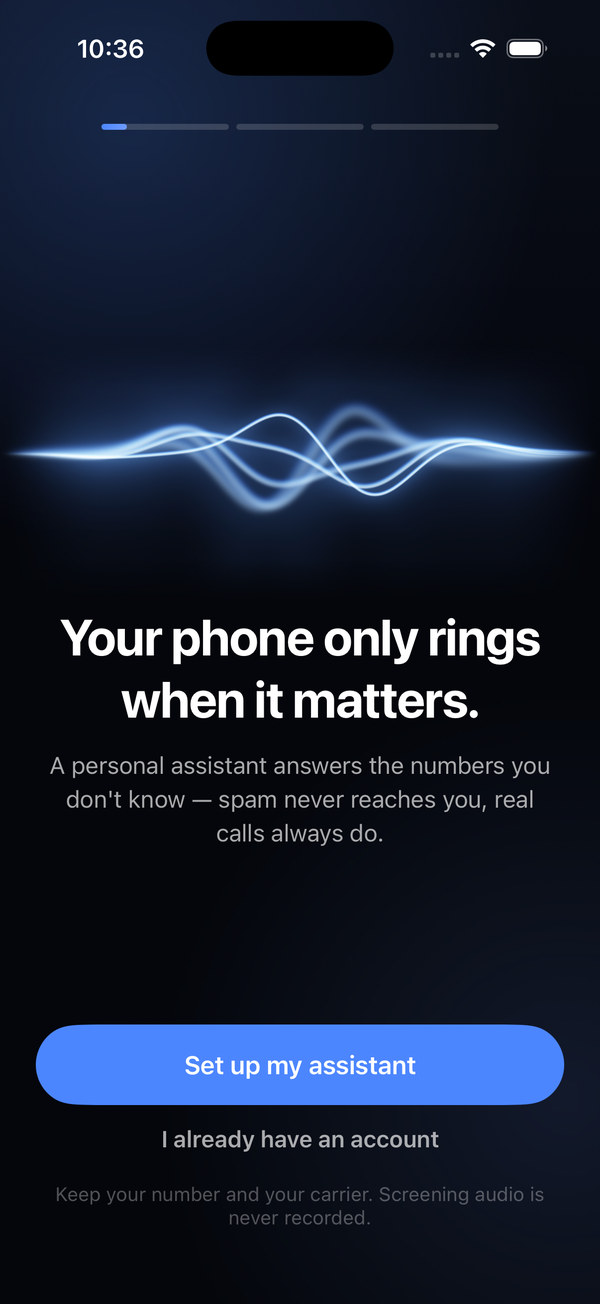
Sign in, name, and voice
- Sign in with Apple. Your account is tied to your Apple ID. There is no password to create.
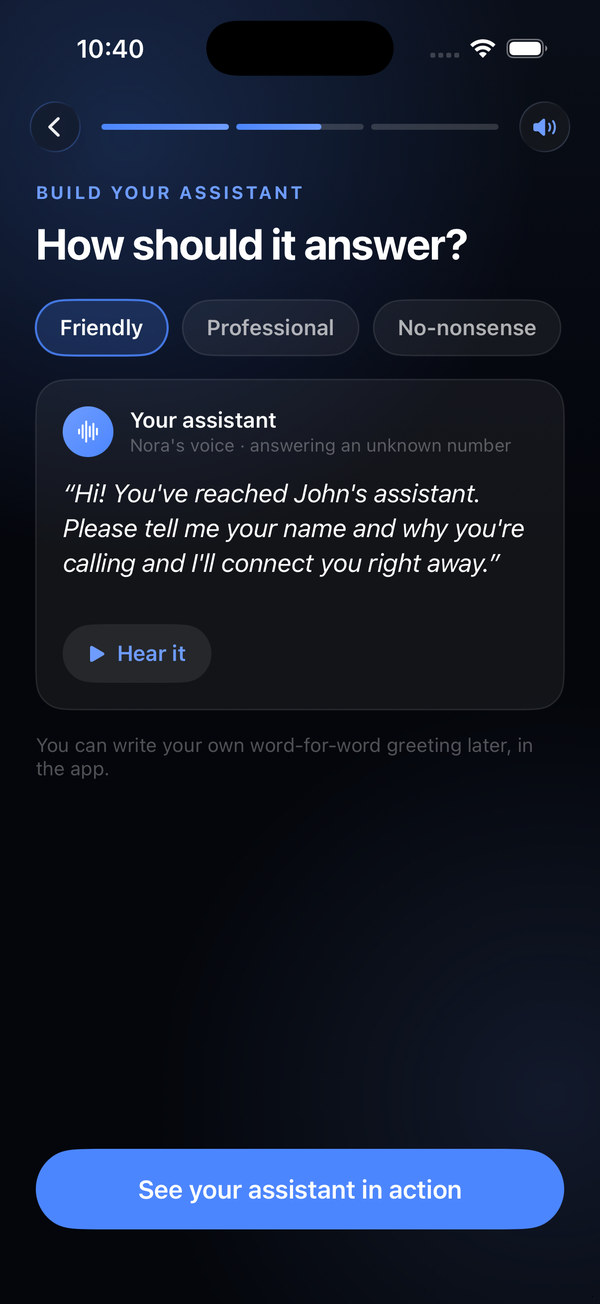
- Your first name. Callers hear “you’ve reached John’s assistant.” That’s all the name is used for.
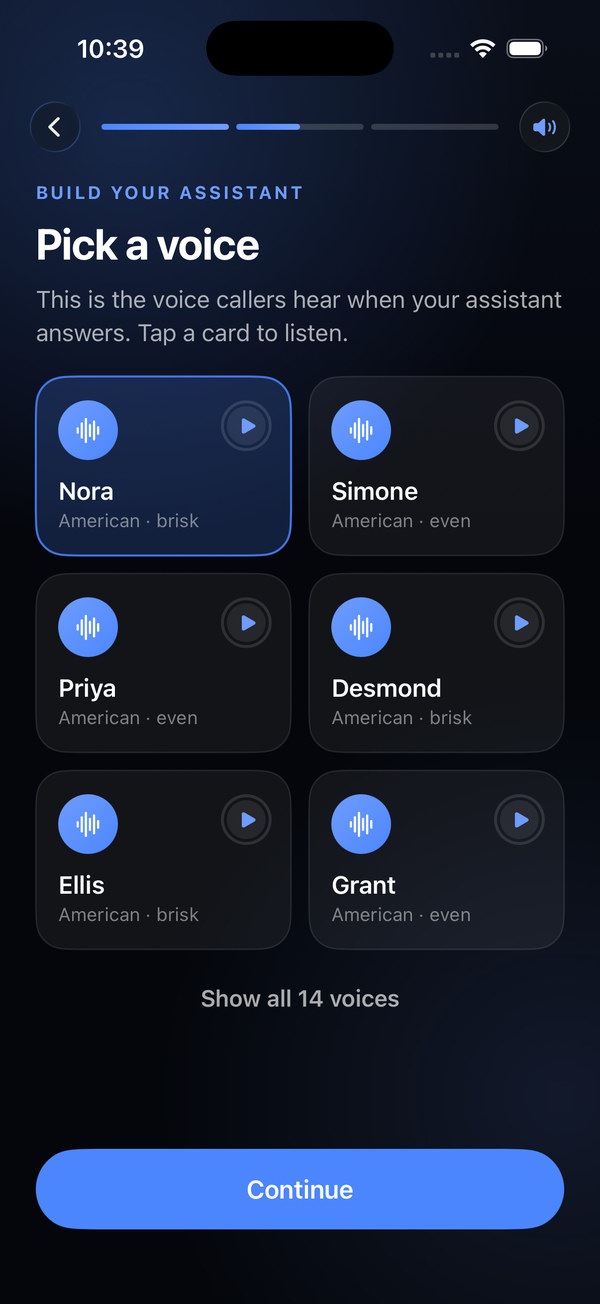
- Pick a voice. Tap a card to hear it. This is the voice unknown callers hear when the assistant picks up.
- Choose a greeting style (friendly, professional, or no-nonsense). You can write your own word-for-word greeting later under Assistant → Greeting.
- Watch it work. A short demo screens a robocall and then a real call, in the voice you chose, so you know exactly what callers will experience.
Contacts and your free week
- Allow Contacts. People in your contacts ring straight through and are never screened. Without this, everyone you know is treated like a stranger. iOS “Limited Access” works too, for the contacts you select.
- Start your 7 days free. Apple handles the subscription. Nothing is charged until the week is over, and you get a reminder the day before. Cancel any time in iOS Settings → your name → Subscriptions.
Pick how it answers
- Gatekeeper answers first. Contacts still ring straight through; everyone else has to say who they are before your phone rings.
- Safety Net lets your phone ring first. The assistant steps in only on calls you decline or miss, and replaces your carrier voicemail.
You can switch between them any time. It’s one tap on the Assistant tab.
Your number and the forwarding code
- Enter your own number and carrier. You keep both. Nothing ports, nothing changes for the people who call you.
- The app reserves a screening number in your area code when it can. This is where your assistant answers. Only your carrier ever sees it; callers never do.
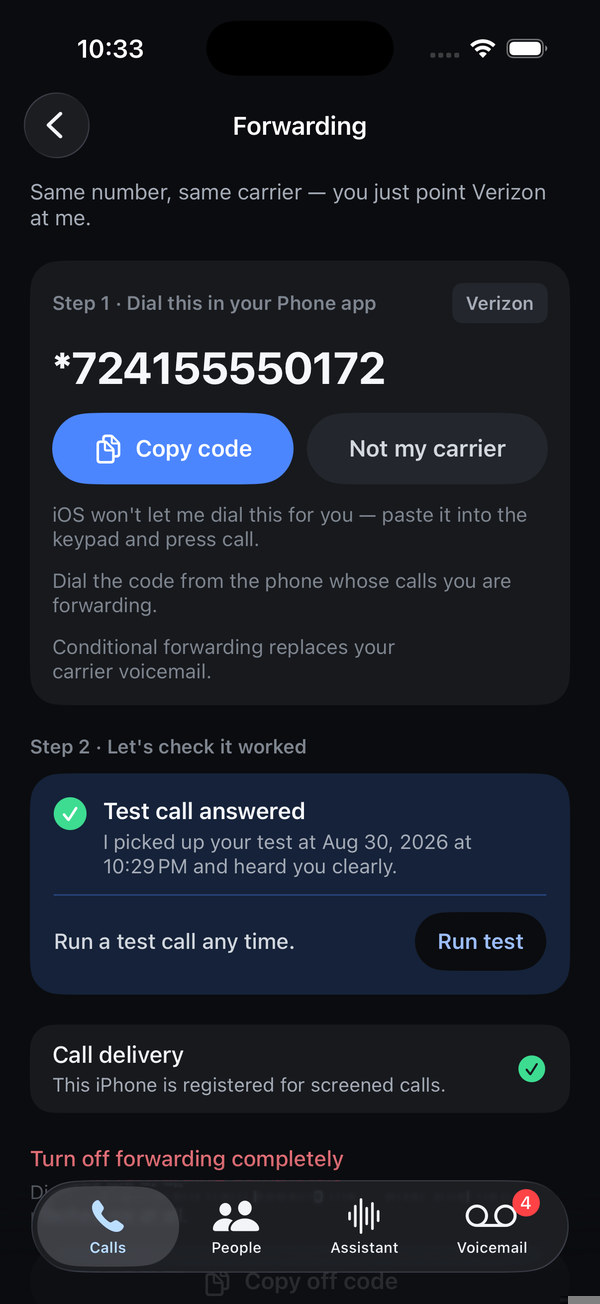
- Dial the forwarding code. The app shows the exact code for your carrier and mode. Tap Copy, then open Phone, paste it into the keypad, and press call. You’ll hear a short confirmation tone. iOS doesn’t let apps dial codes containing * or # for you, which is why this step is manual.
- Let it check. The app places a silent test call to your number from your screening number. Don’t answer it. When it forwards correctly, the step turns green and forwarding is live.
- Notifications and microphone. Notifications are how you hear that someone left a message or a screened call needs you. The microphone is required to talk on a screened call you accept.
If you want to look around before forwarding, tap Skip — test without forwarding. The app works, but no calls reach the assistant until you dial the code from Settings → Forwarding.
2. Call forwarding codes
The app shows your exact code with your screening number filled in (Settings → Forwarding). This is the same table, for reference. Dial from the phone whose calls you’re forwarding. Number means your screening number, digits only.
| Carrier | Gatekeeper (all calls) | Safety Net (missed and declined) | Turn off |
|---|---|---|---|
| Verizon | *72 + number | *71 + number | *73 |
| AT&T | **21*number# | **004*number# | ##21# or ##004# |
| T-Mobile | **21*number# | **004*number# | ##21# or ##004# |
| Other carriers | **21*number# | **004*number# | ##21# or ##004# |
- Dial the whole code, including the
#at the end where there is one, then press call. A short tone or a brief “call ended” means it took. - Most carriers, including prepaid and MVNO brands, honor the standard GSM codes in the last row. If yours doesn’t, search your carrier’s app or support site for “call forwarding” and use the same number, or email us.
- Safety Net uses conditional forwarding, which replaces your carrier voicemail. Messages are taken by Phone Screen instead, and appear in the Voicemail tab.
- Turn forwarding off before you cancel your subscription. Otherwise forwarded calls will go nowhere.
3. The Calls tab
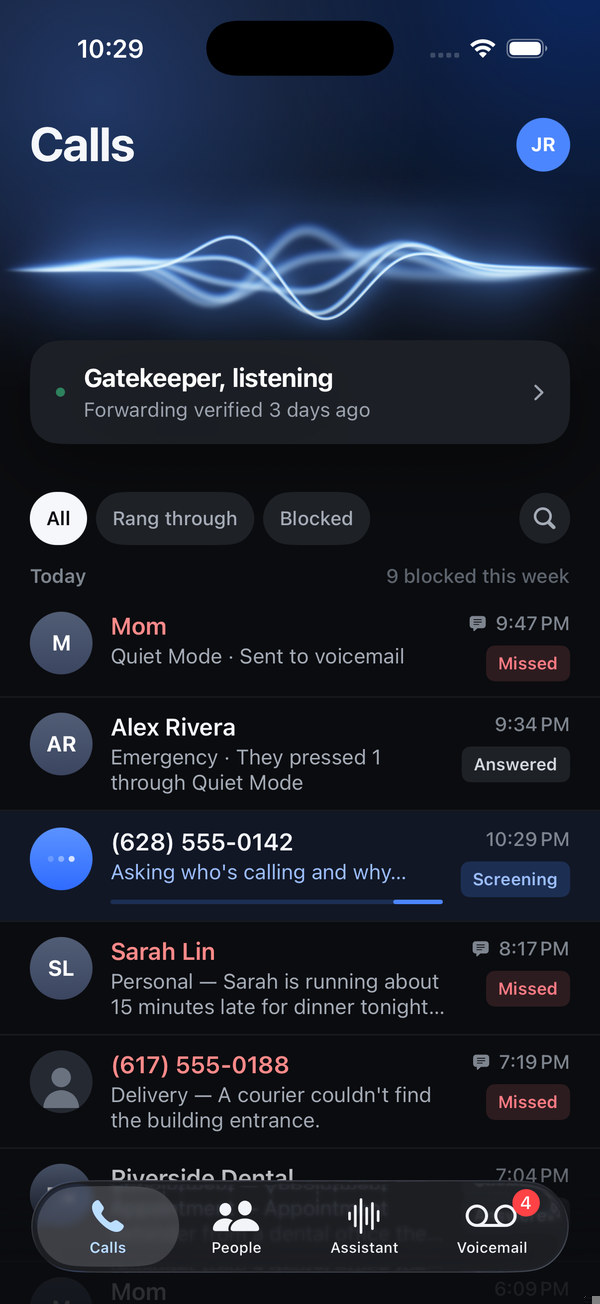
Every call to your number, screened or not, in one list. The black card at the top says what the assistant is doing right now and when forwarding was last verified.
Reading a row
Each row is who called, what the assistant concluded (“Robocall — Matched a known robocall script”, “Healthcare — Confirming tomorrow’s appointment”), when, and how it ended:
- Screening (blue): happening right now. You can watch the transcript form.
- Answered: rang through and you picked up.
- Missed (red): rang through and you didn’t.
- Blocked (faded): ended before your phone rang. It never made a sound.
- Hung up (faded): the caller gave up mid-screening.
Use the All, Rang through, and Blocked filters or the search button to find a call. Long-press any row to always allow or always block that number.
Call detail
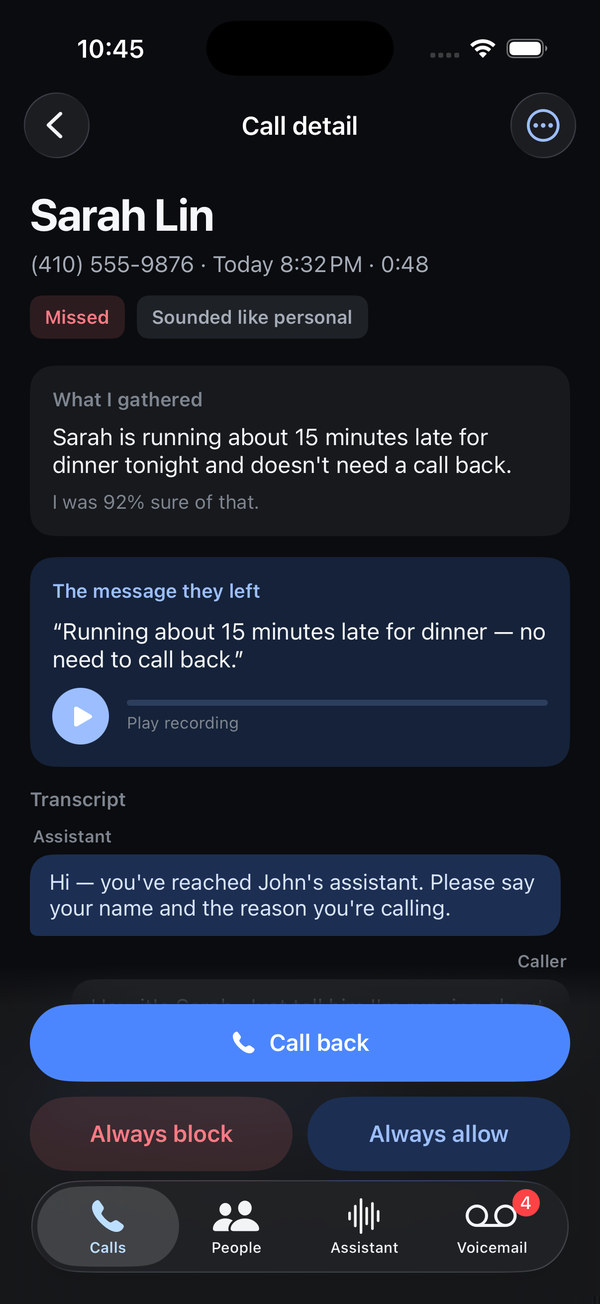
Tap a call to see everything the assistant knows about it:
- What I gathered: the assistant’s one-sentence reasoning and how sure it was.
- Transcript: what the assistant said and what the caller answered, up to the moment it connected you, took a message, or hung up.
- The message they left, with audio, if there is one.
- Call back, Always block, and Always allow. The last two create a rule for that number and take effect on the next call.
The ⋯ menu shares the call as text or deletes it. Deleting removes the record, the transcript, and any recording immediately.
4. People: contacts and rules
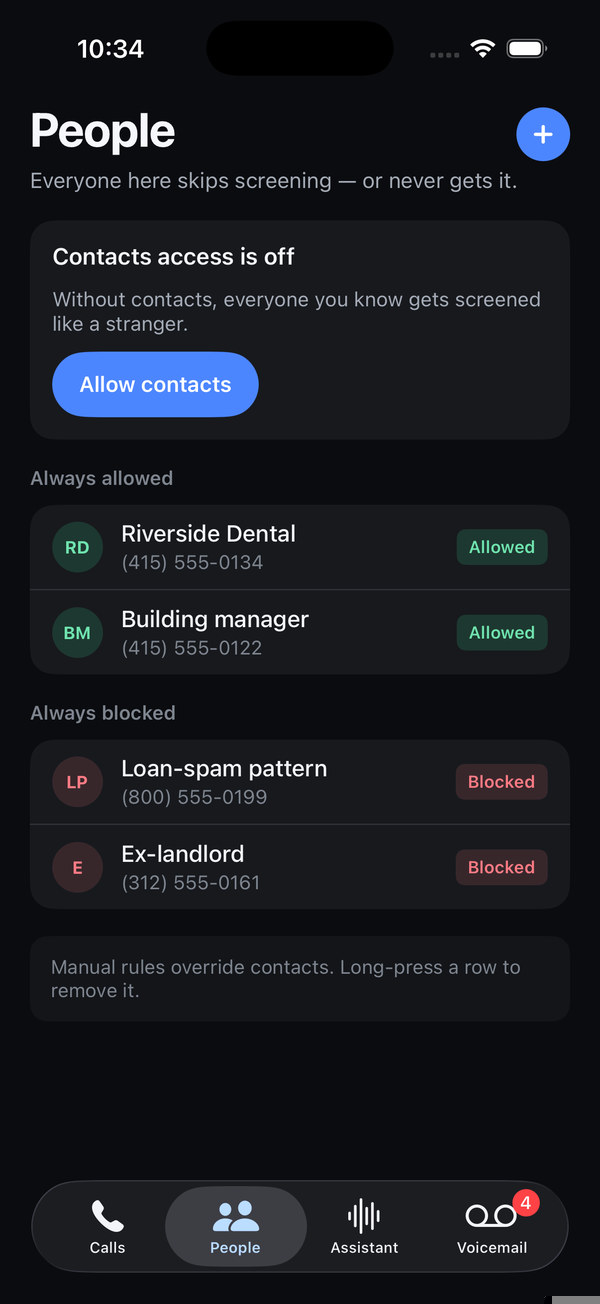
The People tab is everyone who skips screening, or never gets it.
- Contacts shows how many of your contacts are synced and when. They always ring straight through. Manage opens the iOS permission.
- Always allowed and Always blocked are the rules you’ve made, from a call or by hand with the + button. You can type a number or pick one from Contacts, and give it a label.
- Manual rules outrank contacts. A number you’ve blocked stays blocked even if it’s in your address book. Long-press a rule to remove it.
5. The Assistant tab
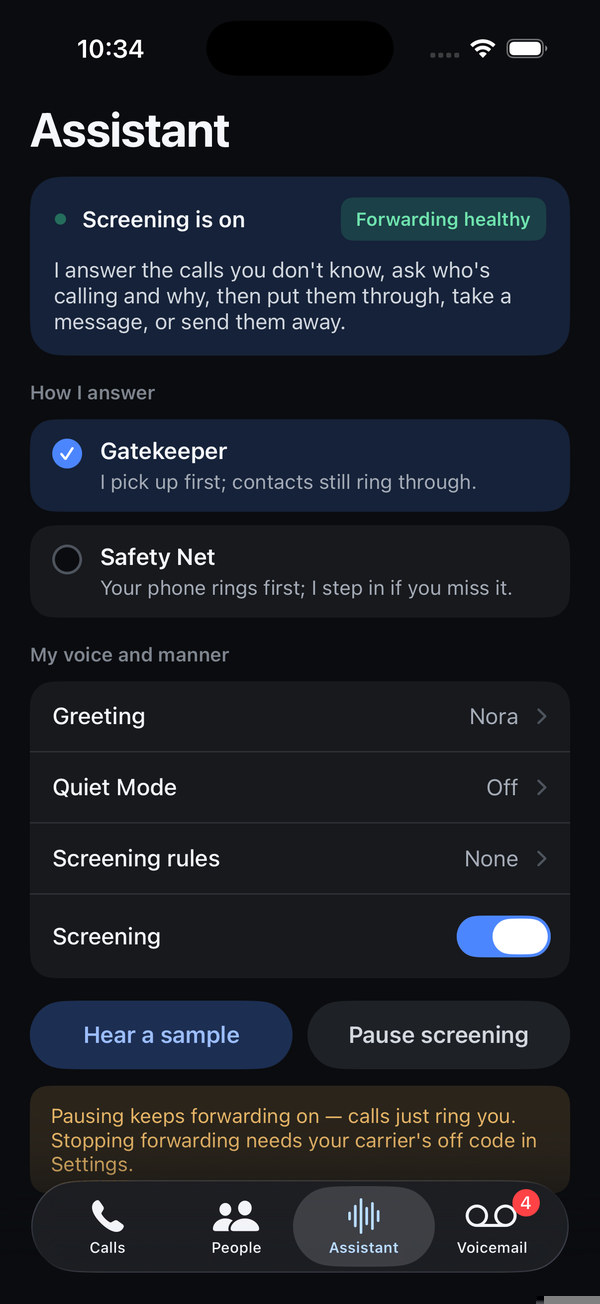
Everything about how the assistant behaves lives here.
- Status: whether screening is on or paused, and whether forwarding is healthy.
- How I answer: Gatekeeper or Safety Net. Switching modes changes which forwarding code you should have dialed, so the app walks you through re-dialing.
- Greeting: the voice, and the screening, voicemail, and Quiet Mode greetings, each edited separately. Each can use the stock script, your own script, or a recording of your own voice. Hear a sample plays the current one.
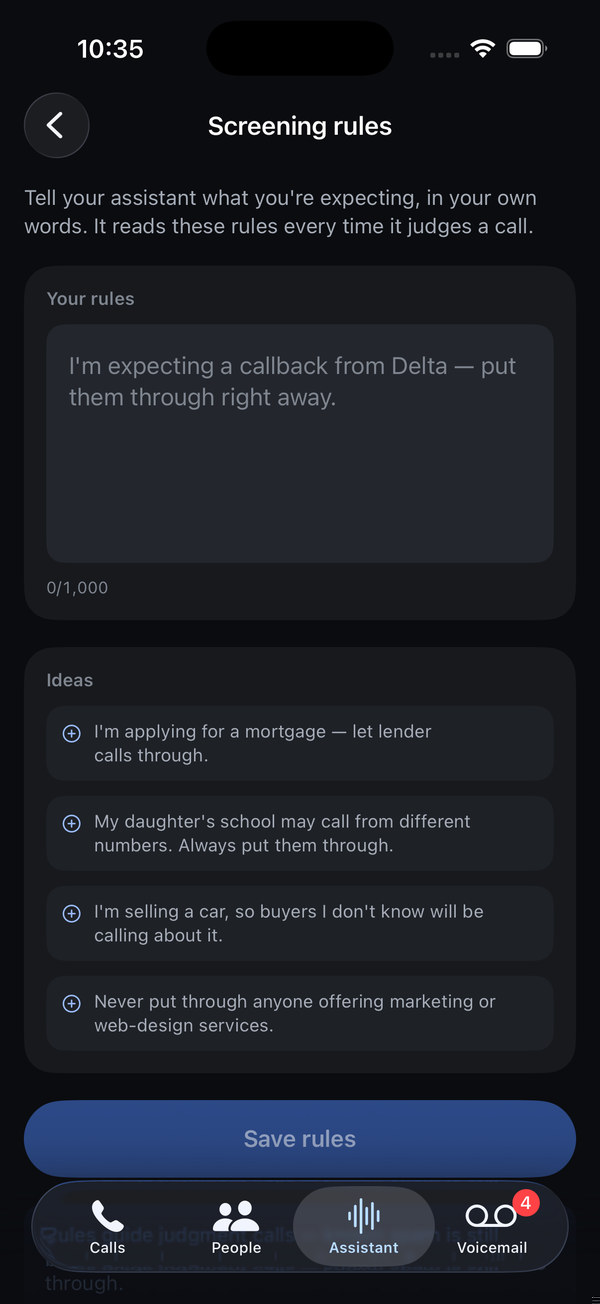
- Screening rules: plain-English notes the assistant reads on every call. “I’m selling a car this week.” “My daughter’s school may call from different numbers.” Up to 1,000 characters.
- Pause screening: every call rings you directly until you resume. Forwarding stays in place.
Writing screening rules
Rules guide judgment calls. Known spam is still blocked, and people you’ve allowed still ring through. They work best when they describe a situation, not a number:
- “I’m expecting a callback from Delta — put them through right away.”
- “I’m applying for a mortgage — let lender calls through.”
- “Never put through anyone offering marketing or web-design services.”
Keep the greeting asking for a name and a reason. The assistant judges the call from what the caller says in reply; a greeting that doesn’t ask gives it nothing to work with, and the app warns you if yours drops it.
6. Voicemail
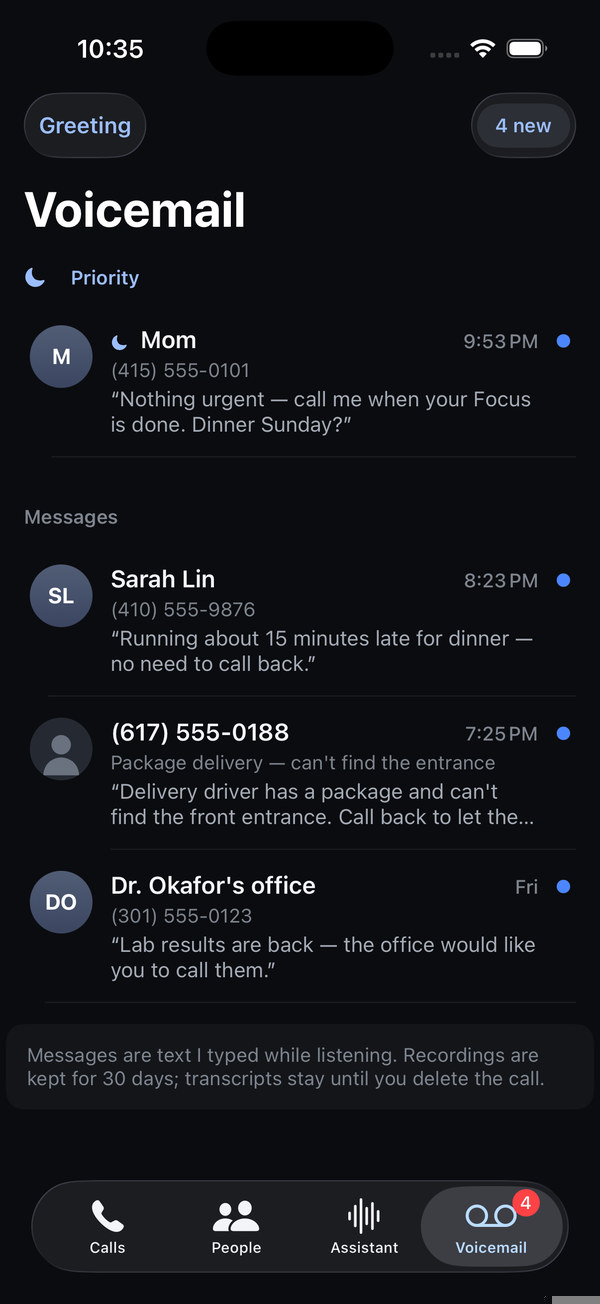
A caller is offered voicemail when a call that rang through goes unanswered, when you decline it, or when they leave a priority message in Quiet Mode. Messages appear in the Voicemail tab with a transcript, and you can play the recording. In Safety Net mode this replaces your carrier’s voicemail entirely.
Recordings are kept for 30 days; the transcript stays with the call. Deleting the call deletes both.
7. Quiet Mode
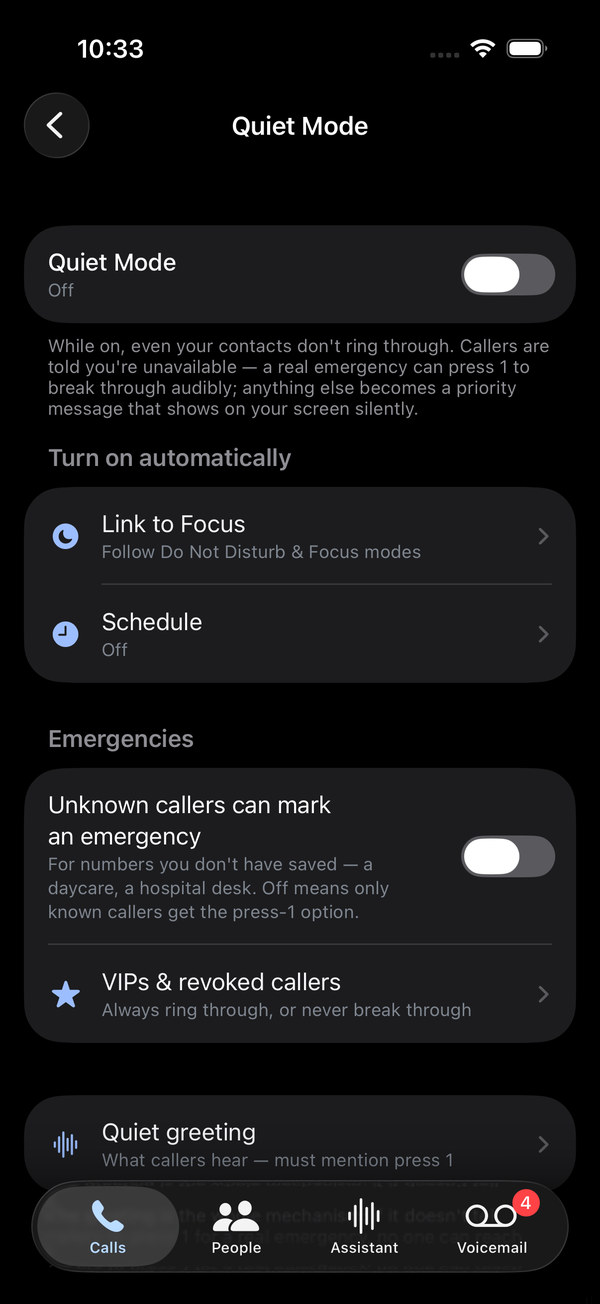
Quiet Mode is for when you don’t want to be reached, but a real emergency still should. While it’s on, even your contacts hear that you’re not taking calls. A caller who presses 1 rings straight through, labeled as an emergency. Anyone else leaves a priority message that appears on your screen silently.
Turning it on
- By hand: Settings → Quiet Mode, then choose 1 hour, until tomorrow morning, or until you turn it off.
- On a schedule: set the days and hours (for example every night 10 PM to 7 AM). It runs on our servers, so it works even if your phone is off.
- With Do Not Disturb or a Focus: in iOS Settings → Focus → choose a Focus, then (1) under Focus Filters add the Phone Screen filter and turn on Quiet Mode, (2) under Allow Notifications → Apps add Phone Screen so an emergency can ring out loud, and (3) leave Time-Sensitive notifications on so priority messages appear. The app’s Link to Focus screen has this checklist with a button to open iOS Settings.
Emergencies
- Known callers always get the press-1 option. Turn on Unknown callers can mark an emergency if a daycare or hospital might call from a number you don’t have.
- VIPs skip the quiet greeting and ring through as if Quiet Mode were off.
- If someone presses 1 for something that wasn’t an emergency, open that call and tap This wasn’t an emergency. Next time they’ll leave a message instead.
- The Quiet Mode greeting must tell callers to press 1. If you write your own, keep that sentence.
8. Settings
Tap your initials at the top of the Calls tab.
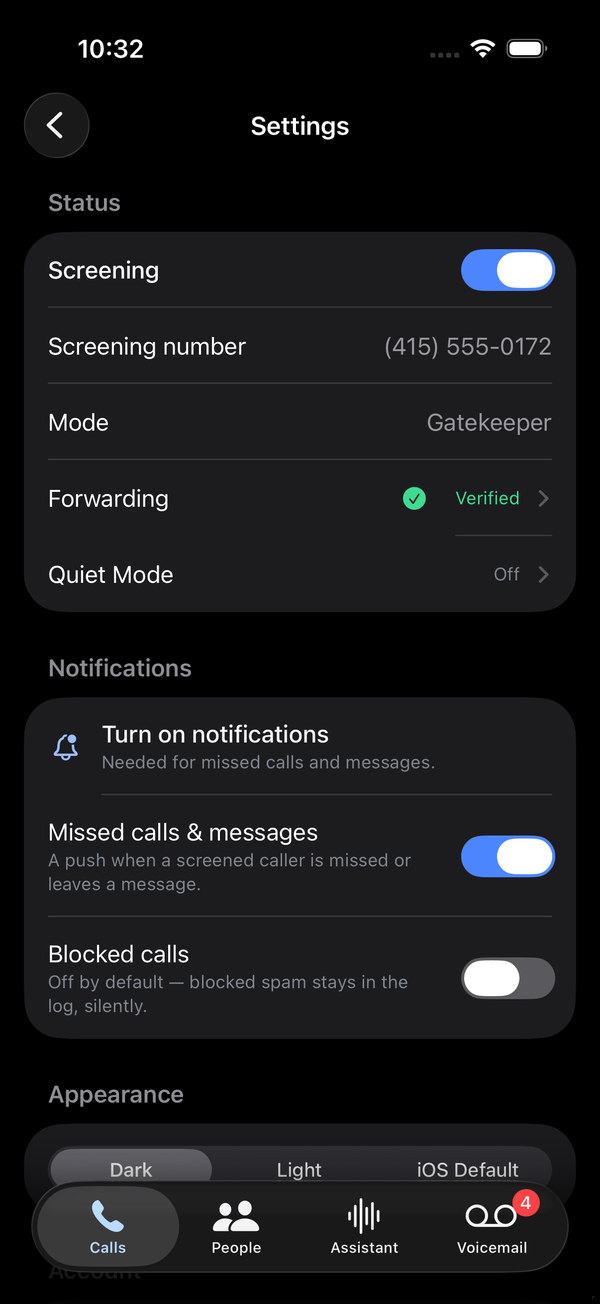
- Screening on or off, your screening number, and your mode.
- Forwarding: the code for your carrier, a test call you can run any time, and a way to turn forwarding off completely.
- Notifications: missed calls and messages are on by default; blocked calls are off by default, so spam stays silent in the log.
- Appearance: dark, light, or follow iOS.
- Delete account: removes everything and releases your screening number. Dial your carrier’s turn-off code first, or forwarded calls will go nowhere.
Checking forwarding
Settings → Forwarding shows the code for your carrier and mode and lets you run the test call again. The app calls your number from your screening number; don’t answer, and let it forward. Verifiedmeans calls are reaching the assistant. Problem means the test call rang your phone or went to your carrier’s voicemail, so forwarding isn’t set: re-dial the code and test again.
The Apple Watch companion, installed from the Watch app on your iPhone, rings on your wrist for the same calls that ring your phone.
9. Troubleshooting
Most problems are one of these.
Forwarding says “Problem”, or unknown callers ring my phone directly
- Open Settings → Forwarding and run the test call. Don’t answer it.
- If it fails, copy the code again, dial it from the Phone app, wait for the tone, and test again. Codes occasionally take a minute to apply.
- In Safety Net mode your phone is supposed to ring first. Only the calls you miss or decline are screened. Switch to Gatekeeper on the Assistant tab if you want every unknown call screened before it rings.
- Check the Screening toggle in Settings. When it’s off, or when you’ve paused screening on the Assistant tab, everything rings you directly.
- Some prepaid and MVNO plans don’t support conditional forwarding. Try the Gatekeeper code instead, or email us with your carrier.
A call I wanted was blocked
- Open the call to read what the caller said and why the assistant decided as it did.
- Tap Always allow. That number rings through from now on.
- If it’s a kind of call rather than one number (a school, a job search, a contractor), add a screening rule on the Assistant tab.
- Check the People tab shows your contacts synced. If Contacts access is off, everyone you know is being screened.
- Check Quiet Mode isn’t on. While it is, even contacts hear the quiet greeting.
Callers say they got voicemail, or that the assistant didn’t understand them
In Safety Net mode, a call you don’t answer goes to Phone Screen’s voicemail. That’s expected; the message is in the Voicemail tab. If a caller says they were cut off, open the call: a line with no speech is treated as a robocall, and a very noisy line can be too. Allow the number and ask them to call again, and if it keeps happening, email us the time of the call.
I’m not getting notifications
Check the two toggles in Settings, then iOS Settings → Notifications → Phone Screen. Blocked calls never notify unless you turn that on. If a Focus is active, priority messages still show only when Phone Screen is allowed under the Focus and Time-Sensitive notifications are on.
An emergency call rang silently during a Focus
Add Phone Screen under Allow Notifications → Apps for that Focus (step 2 of Link to Focus). It won’t leak noise: while Quiet Mode is on, Phone Screen never rings for anything except a real emergency.
How do I turn it off, pause it, or cancel?
- Pause: Assistant → Pause screening. Every call rings you directly; forwarding stays in place so you can resume in one tap.
- Turn forwarding off: Settings → Forwarding → Turn off forwarding completely, and dial the code it shows. After that nothing reaches Phone Screen at all.
- Cancel the subscription: iOS Settings → your name → Subscriptions. Turn forwarding off first.
- Delete your account: Settings → Delete account. Everything is removed and your screening number is released.
New phone, or reinstalled the app
Sign in with Apple again and everything is where you left it. Forwarding is set at your carrier, so it carries over with your number. Allow notifications and the microphone again when asked, and re-check Contacts access on the People tab.
10. Contact us
Email support@phonescreen.app. A person reads every message. The more of this you include, the faster we can help:
- Your iPhone model, iOS version, and carrier.
- Your mode (Gatekeeper or Safety Net) and whether Settings → Forwarding says Verified.
- If it’s about one call, roughly when it happened and, if you know it, the number that called. The call’s ⋯ menu → Share sends us exactly what we need.
- A screenshot, if something looks wrong.
For questions about your data, see the privacy policy. It explains exactly what is kept, for how long, and how to delete it.